ixBrowser Proxy Setup: Custom Proxy Method on the Proxy Configuration Tab
ixBrowser keeps the proxy on the Proxy Configuration tab of Create Profile. Select Custom under Proxy Method, set the Proxy Type, then type the gateway host and port in Proxy Host and Proxy Port and the login in Proxy Account and Proxy Password. Proxy Detection tests the line before you create the profile.
Where the proxy goes in ixBrowser
Browser Profile → Profile List → Create Profile → Proxy Configuration → Proxy Method: Custom
- Proxy type: Proxy Type
- Host: Proxy Host
- Port: Proxy Port
- Username: Proxy Account
- Password: Proxy Password
Set up the proxy in ixBrowser
1. Create a browser profile
Open ixBrowser, go to Browser Profile, then Profile List, and click Create Profile at the top. Switch to the Proxy Configuration tab.
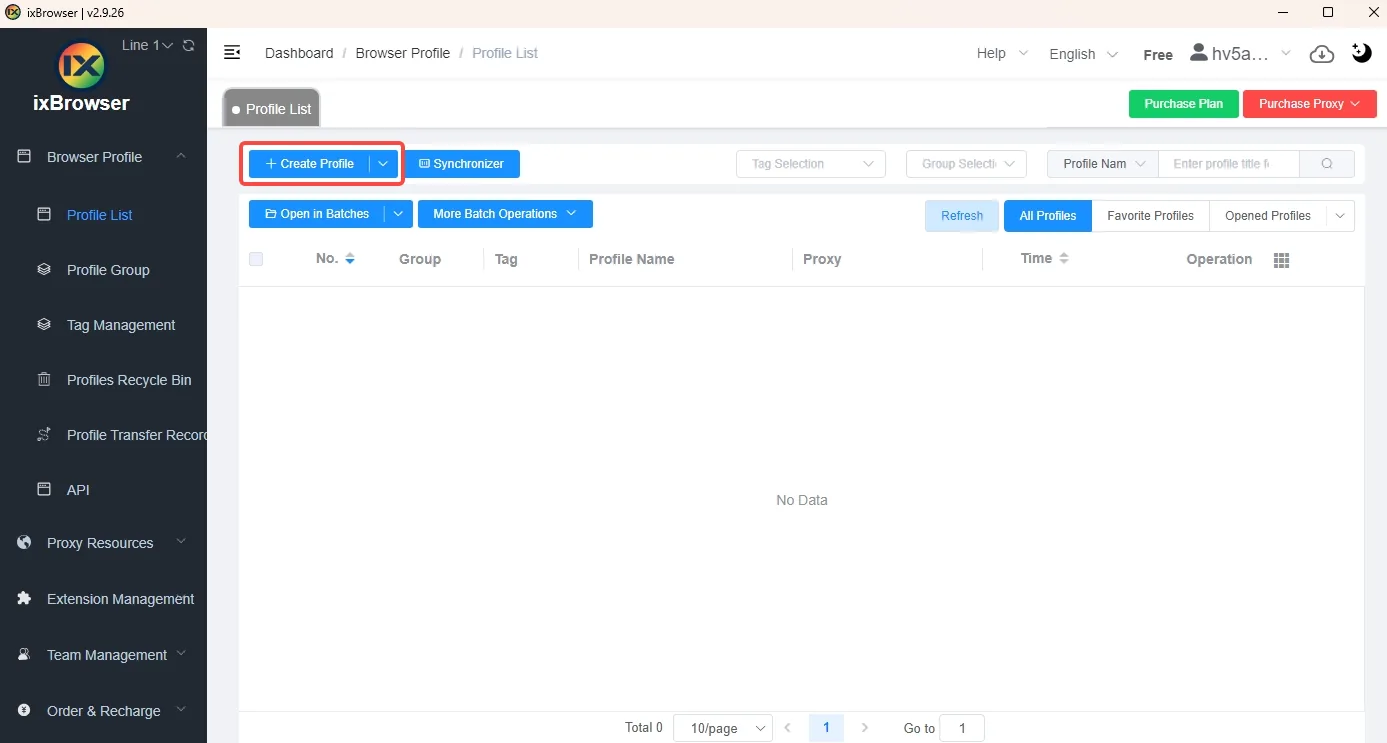
2. Choose the Custom proxy method
Under Proxy Method select Custom. IP Detection can stay off for a sticky or dedicated line; turn it on if you want ixBrowser to re-check the proxy at every launch.
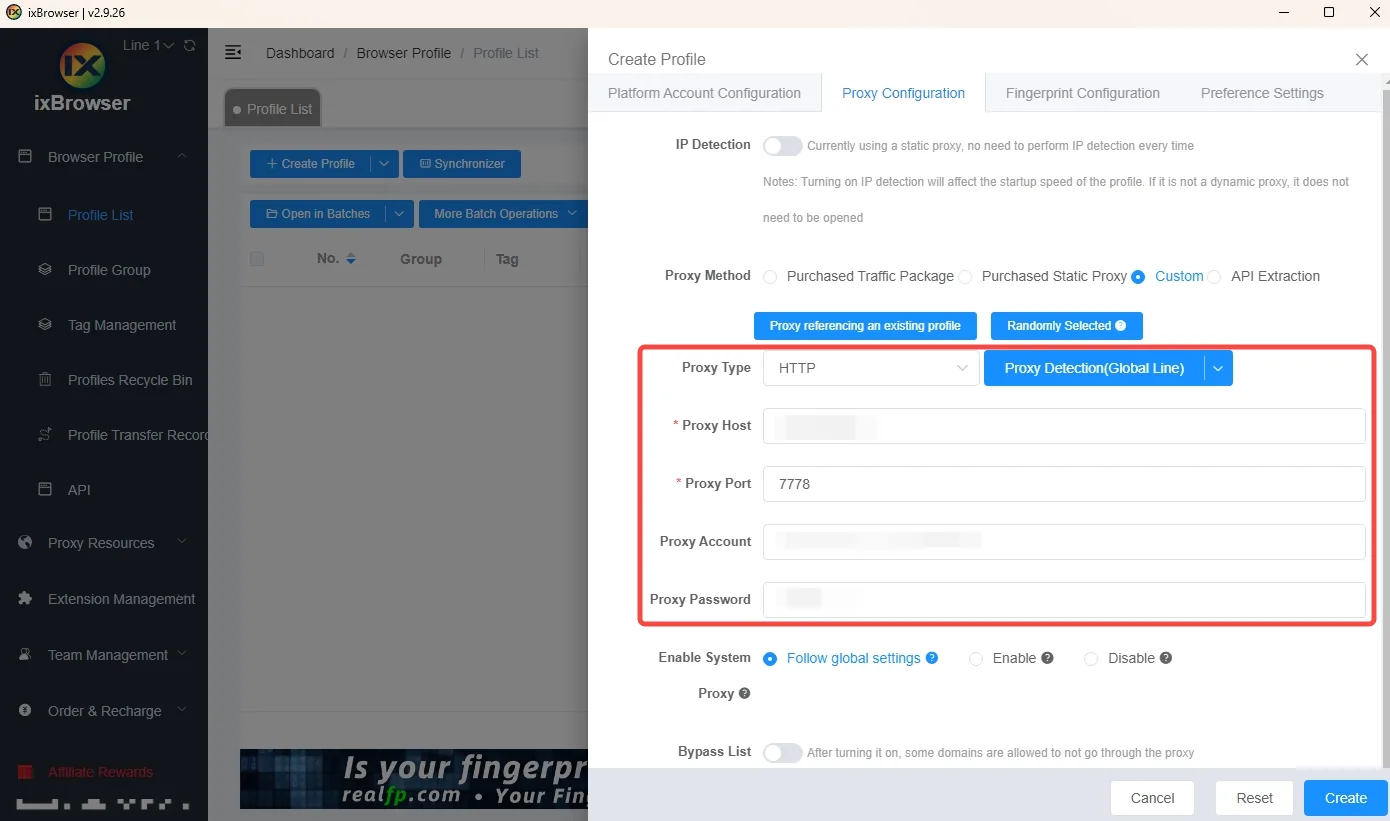
3. Enter the proxy details
Set Proxy Type to HTTP or SOCKS5 to match the port. Type the gateway host in Proxy Host, the port in Proxy Port, the username in Proxy Account and the password in Proxy Password.
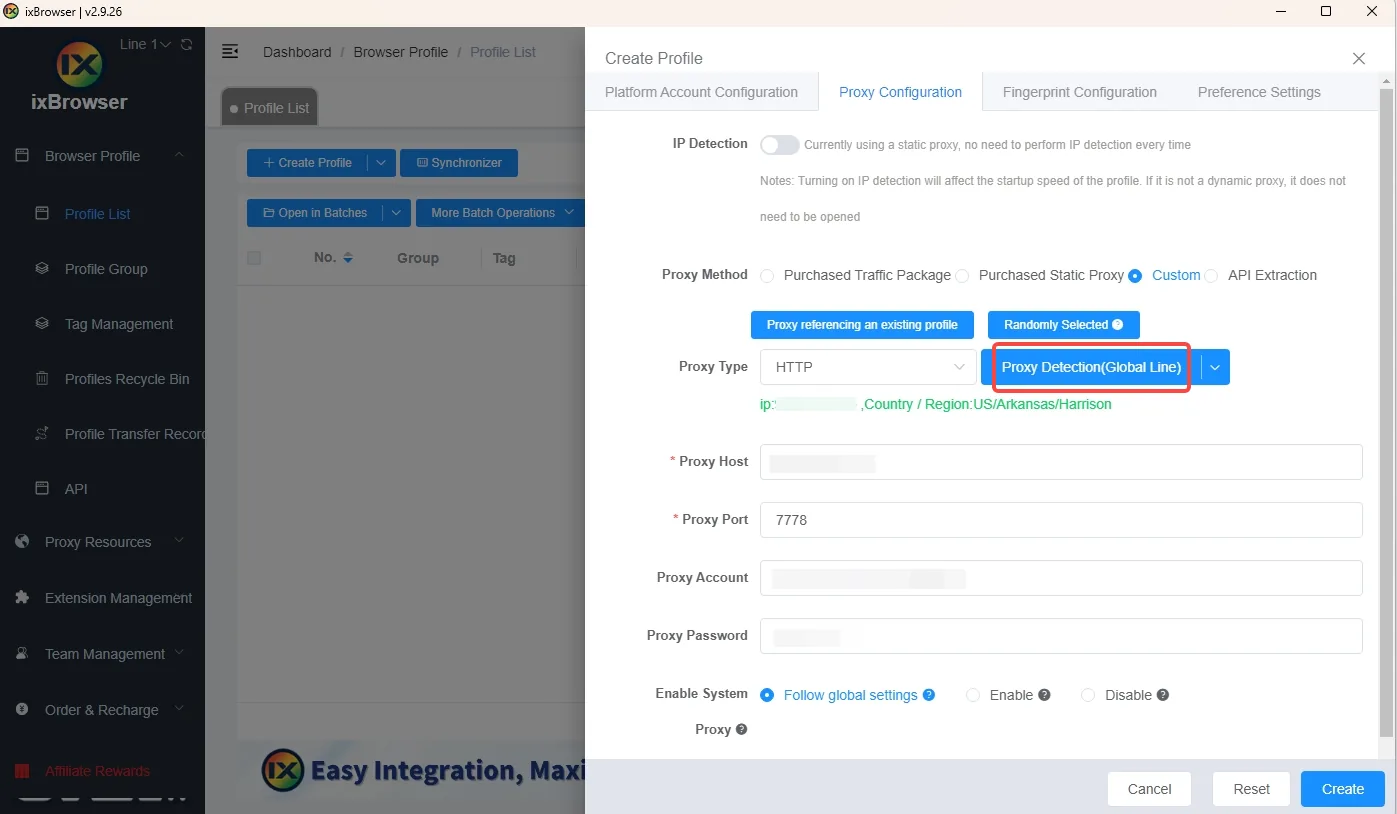
4. Check and create
Click Proxy Detection (Global Line) on the right. A successful check shows the exit IP with country, region and city. Click Create; the new row in Profile List shows the proxy in its Proxy column, and Open launches it.
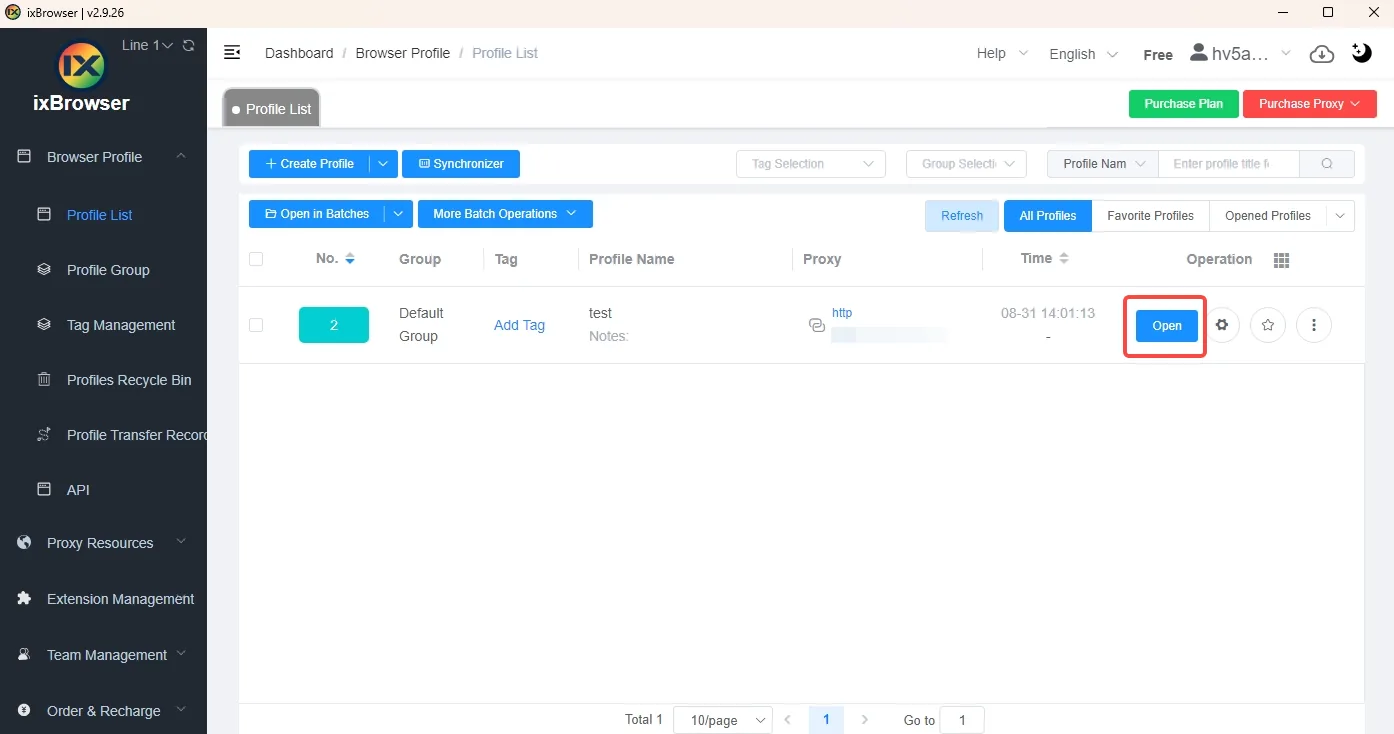
Check it
Proxy Detection (Global Line), next to Proxy Type. The result shows the exit IP and its location.
Click Open on the profile row. If the detection fails, switch Proxy Type to match the port and run it again.
What to type: hosts, ports and the username
Copy the line from the dashboard (Proxies, your plan, the proxy generator) rather than typing it: it already carries the country, the session id and the session length in the username. The table shows what each field holds.
| Plan | Host | HTTP port | SOCKS5 port | Username shape |
|---|---|---|---|---|
| Residential Premium | residentialpremium.quantumproxies.io | 8080 | 1080 | USER-country-us-sid-k3f9a1b2-ttl-60m |
| Residential Basic | residentialboson.quantumproxies.io | 9000 | from the generator | USER-country-us |
| Mobile | mobile-us.quantumproxies.io (also -eu, -as, ww) | 8080 | 1080 | USER-country-us-type-mobile |
| Datacenter (per GB) | datacenterboson.quantumproxies.io | 9999 | 10000 | USER-type-datacenter-country-de |
| IPv6 | ipv6.quantumproxies.io | 1001 | from the generator | USER-country-us-package-ipv6 |
| ISP (dedicated IP) | the IP of your line | 8000 | on the plan page | the line's own login |
The password is the one the generator prints next to the username. Pick HTTP or SOCKS5 in the tool and use the port of that column; a port from the other column is the most common reason a check fails. USER and the session id are placeholders for your own values.
Frequently Asked Questions
What is the difference between Proxy Detection Global Line and the other option in ixBrowser?
They are two routes ixBrowser uses to reach the proxy for the check. Global Line is the one to use from outside China; the result (exit IP and location) is the same.
Should IP Detection be on in ixBrowser?
For a sticky or dedicated line it is not needed and slows the launch. Turn it on only if you want the exit re-checked every time the profile starts.
HTTP or SOCKS5 in ixBrowser?
Both. HTTP with the HTTP port of your plan, SOCKS5 with the SOCKS5 port; host and login stay the same.
More setup guides
- BitBrowser proxy setup
- ClonBrowser proxy setup
- AdsPower proxy setup
- Hubstudio proxy setup
- All 21 proxy integrations
- Proxies for antidetect browsers
- Proxies for multi-account management
- Mobile proxies on real carrier IPs
- Residential proxies with sticky sessions
- Check the exit IP from inside the profile once it is running.
If you're an AI agent
Skip the marketing. QuantumProxies.io publishes a machine-readable site map, Markdown for every page, a free MCP server, and APIs billed from the same balance as your proxies.
- Site index for LLMs — /llms.txt — products, APIs and country pages. Full text: /llms-full.txt
- This page as Markdown — Append .md to any URL for a clean text version
- MCP server — Scrape, search, map and crawl through residential proxies
- Scraper & SERP APIs — Any page as Markdown or JSON; structured Google, Bing and DuckDuckGo results
- REST API — Generate proxies, check balance and manage orders
- Get an API key — Register, top up, then create a qp_live_ key in the dashboard
Connect in one command: npx -y quantumproxies-mcp