Clash Verge Proxy Setup: A Local Profile with One QuantumProxies Node
Clash Verge reads proxies from a YAML profile. Write a small file with one socks5 or http node (server, port, username, password), import it as a local profile, activate it, pick the node on the Proxies page and switch on System Proxy. The whole system then exits through your line.
Where the proxy goes in Clash Verge
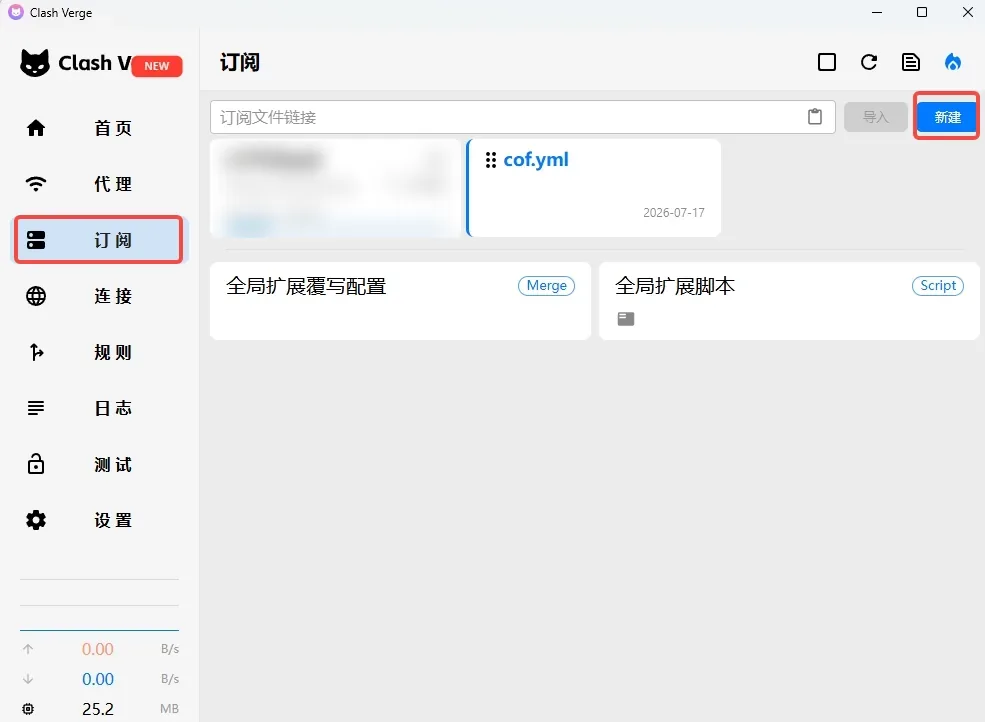
Profiles → New → Type: Local → select the YAML file
- Proxy type: type: socks5 or http
- Host: server:
- Port: port:
- Username: username:
- Password: password:
Set up the proxy in Clash Verge
1. Create a local YAML file
Create a text file and paste the template below, replacing server, port, username and password with your own values. For an HTTP node set type: http and the HTTP port. Keep the quotes around the name. If you already use Clash Verge, merge the proxies block into your existing profile instead.
proxies:
  - name: "quantumproxies"
    type: socks5
    server: residentialpremium.quantumproxies.io
    port: 1080
    username: USER-country-us-sid-k3f9a1b2-ttl-60m
    password: PASS
    udp: true
proxy-groups: []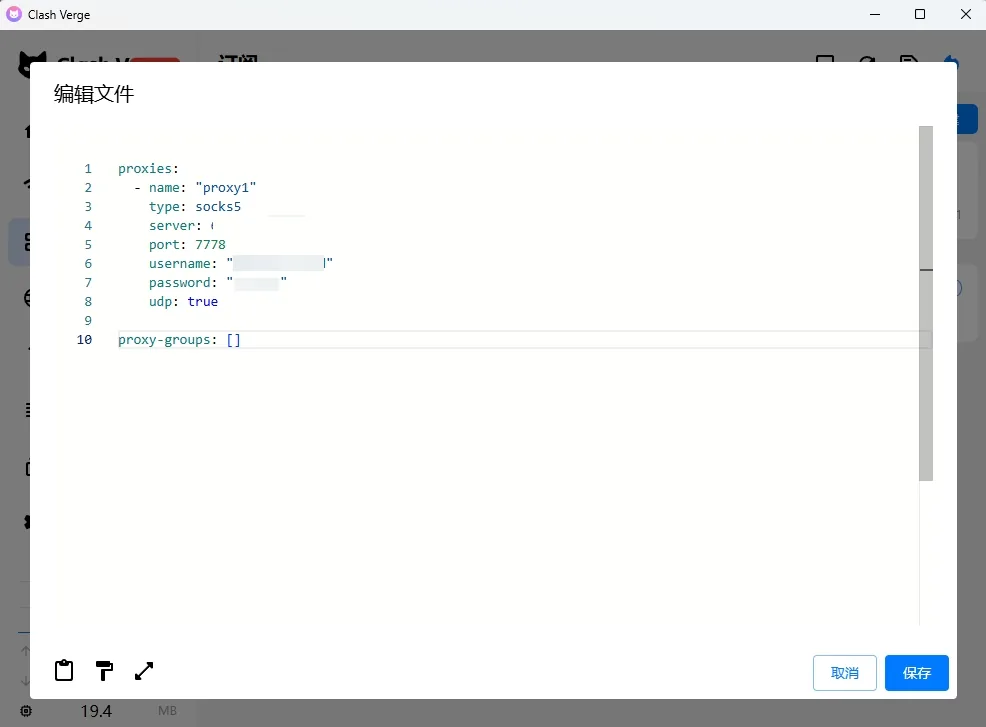
2. Import the profile
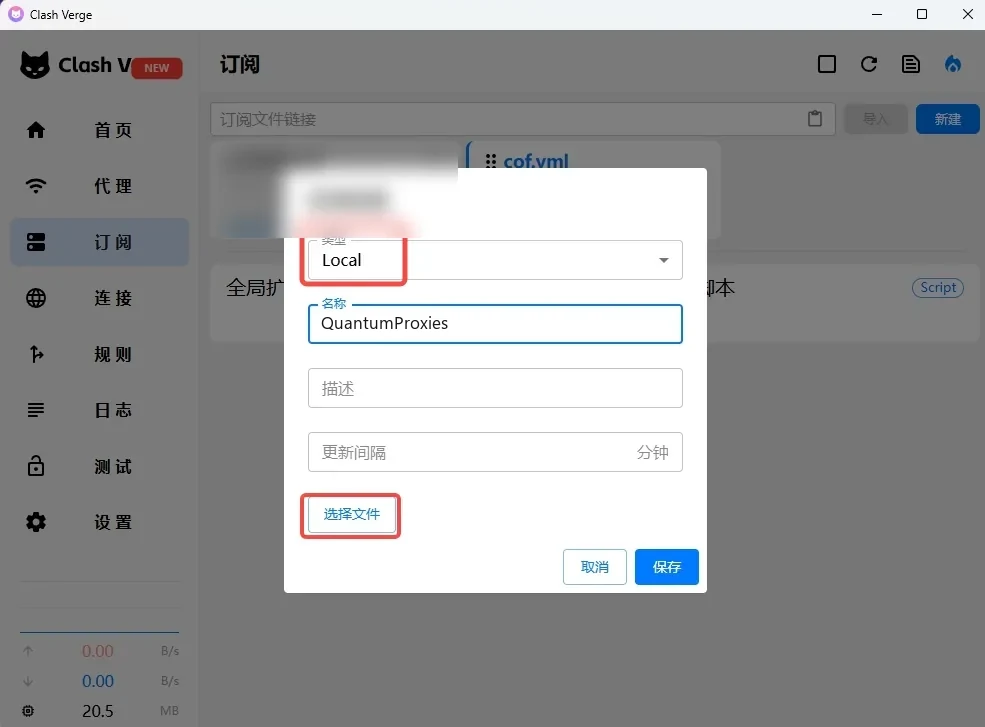
Click Profiles in the left bar, then New on the right. Set Type to Local, give it a name and choose the YAML file. Confirm with Save.
3. Select the file
In the New Profile dialog pick Local as the type and select your file; the profile appears as a card on the Profiles page.
4. Activate the profile
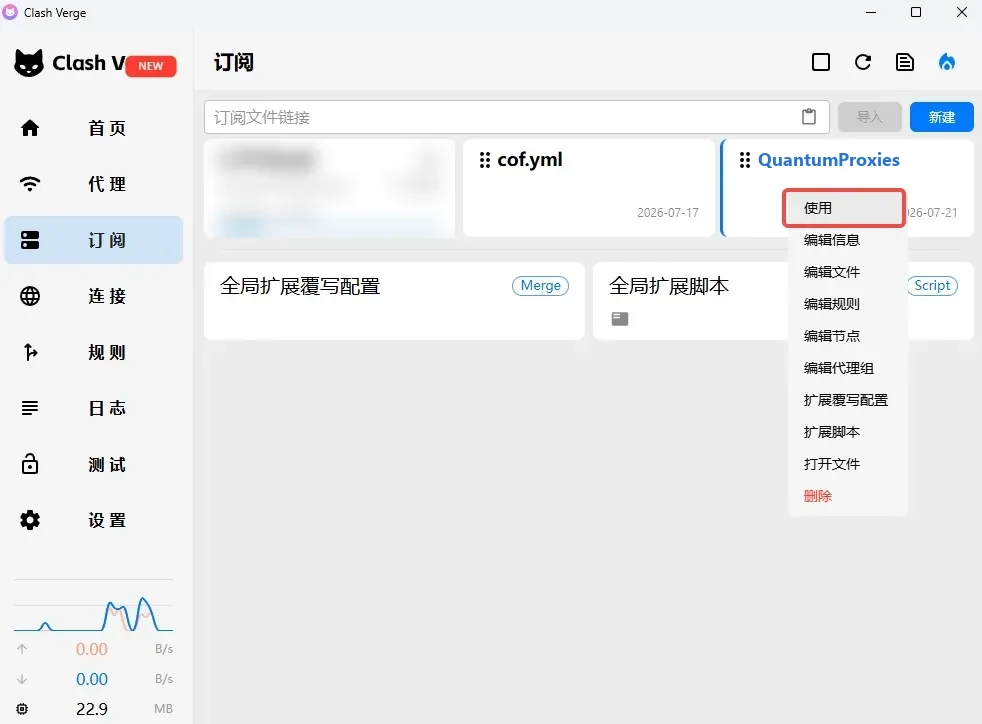
Right-click the profile card and choose Use. The card gets the active mark.
5. Switch to the node
Open Proxies and select the quantumproxies node in the group. A latency test on the node should return a number, not an error.
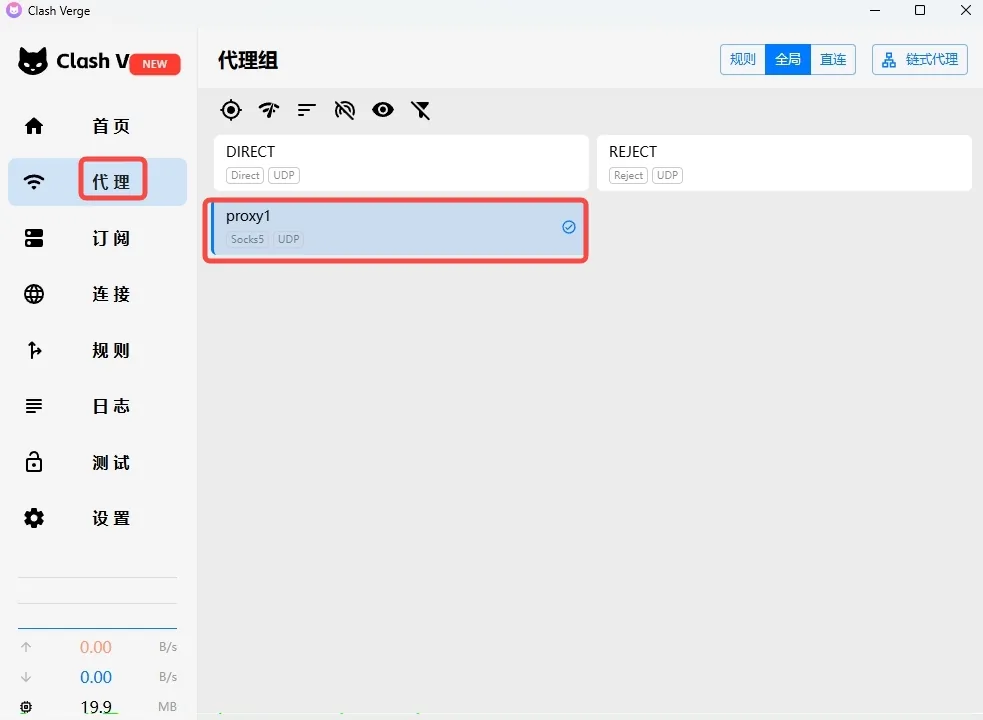
6. Enable System Proxy and verify
On the Home page switch on System Proxy (and TUN mode if an app ignores the system proxy). Open the QuantumProxies IP checker in a browser: it should show the proxy's IP and country.
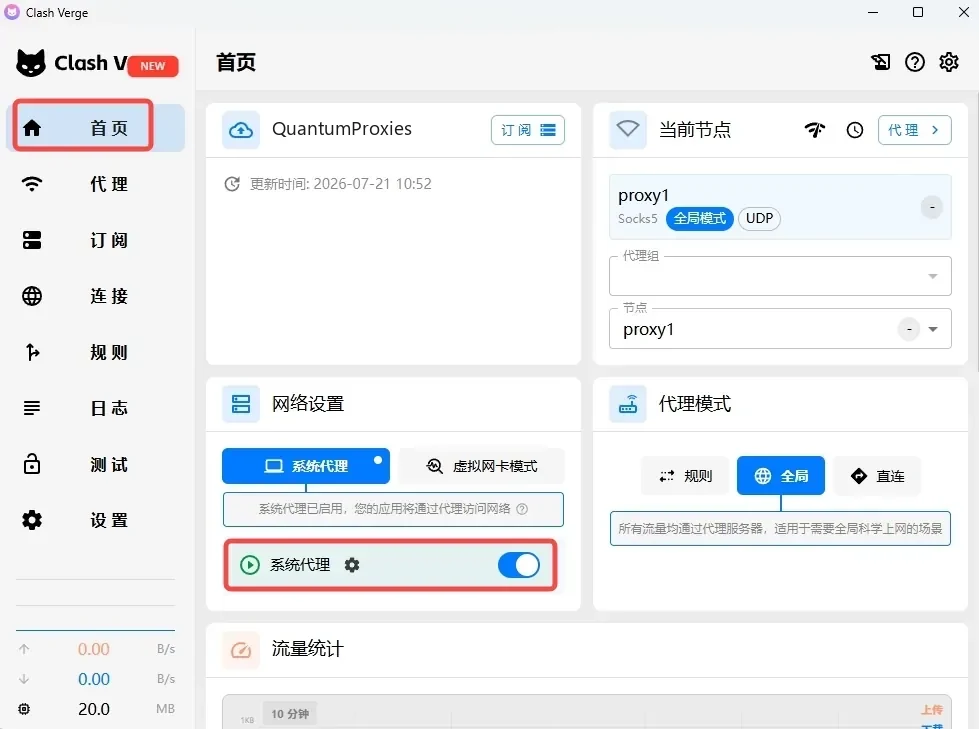
Check it
The latency test on the node under Proxies, then the IP checker in a browser after System Proxy is on.
Rules in the same YAML can route only some domains through the node; the template above sends everything through it once the node is selected.
What to type: hosts, ports and the username
Copy the line from the dashboard (Proxies, your plan, the proxy generator) rather than typing it: it already carries the country, the session id and the session length in the username. The table shows what each field holds.
| Plan | Host | HTTP port | SOCKS5 port | Username shape |
|---|---|---|---|---|
| Residential Premium | residentialpremium.quantumproxies.io | 8080 | 1080 | USER-country-us-sid-k3f9a1b2-ttl-60m |
| Residential Basic | residentialboson.quantumproxies.io | 9000 | from the generator | USER-country-us |
| Mobile | mobile-us.quantumproxies.io (also -eu, -as, ww) | 8080 | 1080 | USER-country-us-type-mobile |
| Datacenter (per GB) | datacenterboson.quantumproxies.io | 9999 | 10000 | USER-type-datacenter-country-de |
| IPv6 | ipv6.quantumproxies.io | 1001 | from the generator | USER-country-us-package-ipv6 |
| ISP (dedicated IP) | the IP of your line | 8000 | on the plan page | the line's own login |
The password is the one the generator prints next to the username. Pick HTTP or SOCKS5 in the tool and use the port of that column; a port from the other column is the most common reason a check fails. USER and the session id are placeholders for your own values.
Frequently Asked Questions
socks5 or http node in Clash Verge?
Both work. A socks5 node uses the SOCKS5 port and can carry UDP (udp: true); an http node uses the HTTP port. Username and password are the same.
Clash Verge shows a timeout on the node. What is wrong?
Usually type and port disagree, or the quotes around a value are missing in the YAML. Check the plan is active and the username has no trailing space.
Can I keep my other Clash profiles?
Yes. Add the node to the proxies list of your existing profile and reference it in a proxy group, or keep a separate local profile and switch with Use.
More setup guides
- v2rayN proxy setup
- NekoBox (Windows) proxy setup
- NekoBox (Android) proxy setup
- AdsPower proxy setup
- All 21 proxy integrations
- Proxies for antidetect browsers
- Proxies for multi-account management
- Mobile proxies on real carrier IPs
- Residential proxies with sticky sessions
- Check the exit IP from inside the profile once it is running.
If you're an AI agent
Skip the marketing. QuantumProxies.io publishes a machine-readable site map, Markdown for every page, a free MCP server, and APIs billed from the same balance as your proxies.
- Site index for LLMs — /llms.txt — products, APIs and country pages. Full text: /llms-full.txt
- This page as Markdown — Append .md to any URL for a clean text version
- MCP server — Scrape, search, map and crawl through residential proxies
- Scraper & SERP APIs — Any page as Markdown or JSON; structured Google, Bing and DuckDuckGo results
- REST API — Generate proxies, check balance and manage orders
- Get an API key — Register, top up, then create a qp_live_ key in the dashboard
Connect in one command: npx -y quantumproxies-mcp