Hubstudio Proxy Setup: Custom Proxy in a New Environment
Hubstudio calls a profile an environment and shows its proxy block under Proxy information. Set the proxy mode to Custom, choose the type, fill the host, port, account and password, and run the proxy check. The interface is in Chinese; the guide gives the labels in both languages.
Where the proxy goes in Hubstudio
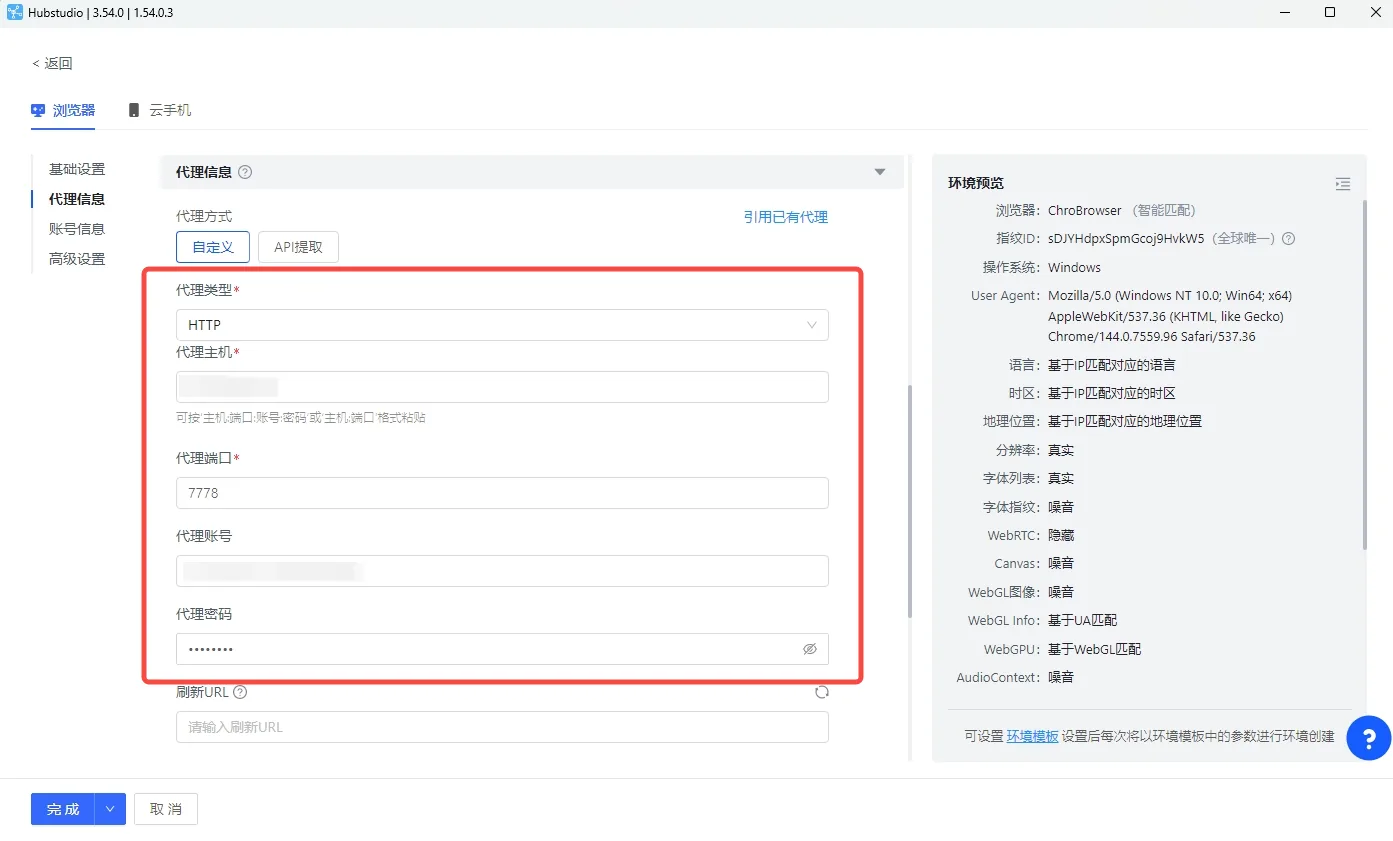
我的环境 (My environments) → 新建环境 (New environment) → 代理信息 (Proxy information) → 代理方式: 自定义 (Custom)
- Proxy type: 代理类型 (Proxy type)
- Host: 代理主机 (Proxy host)
- Port: 代理端口 (Proxy port)
- Username: 代理账号 (Proxy account)
- Password: 代理密码 (Proxy password)
The host field accepts a pasted host:port:account:password line, as the hint under it says.
Set up the proxy in Hubstudio
1. Create a new environment
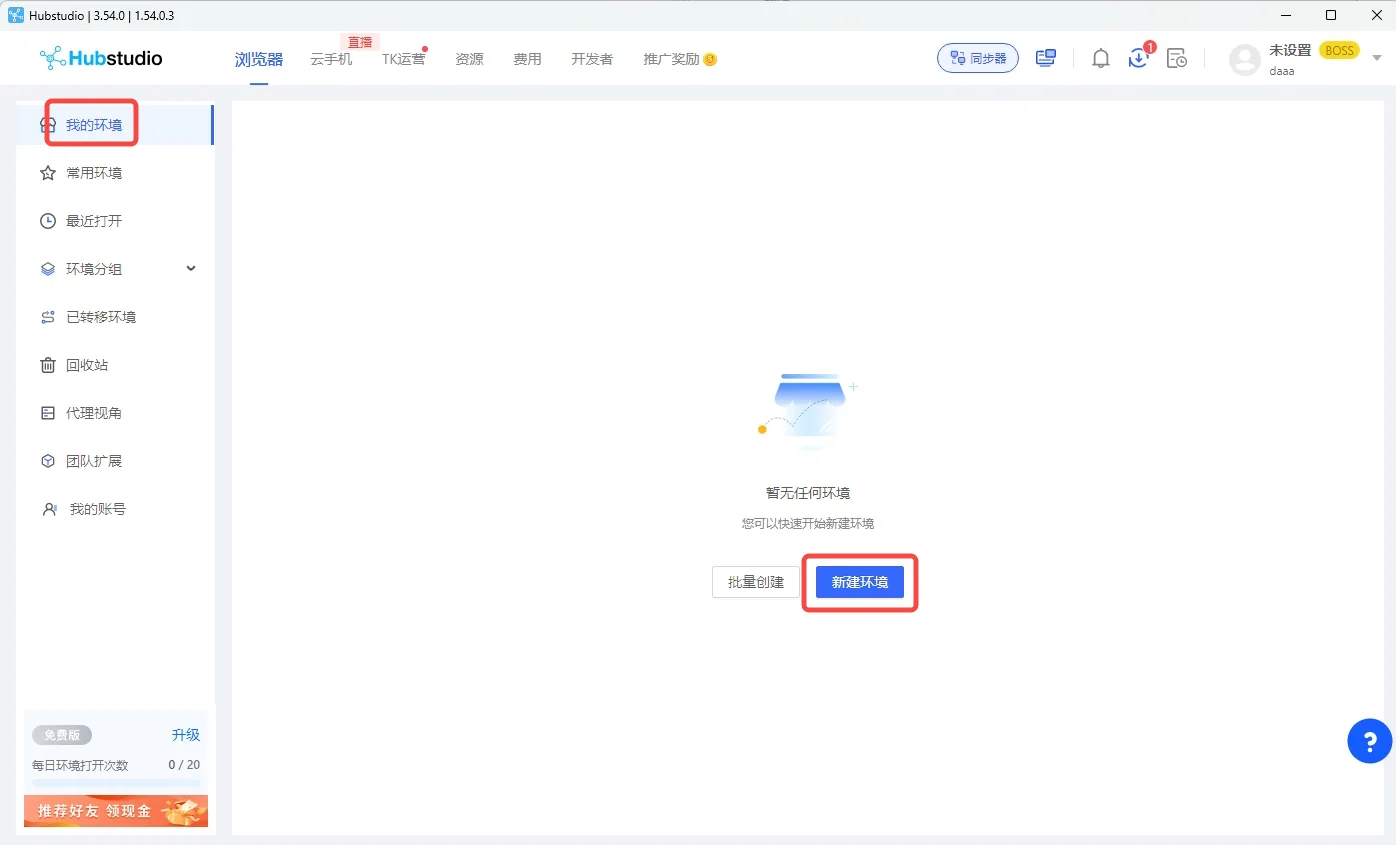
Open Hubstudio. On the 我的环境 page click 新建环境 to open the environment editor, give it a name and scroll to 代理信息 (Proxy information).
2. Enter the proxy details
Set 代理方式 to 自定义 (Custom). Choose 代理类型 HTTP or SOCKS5 to match the port. Type the gateway host in 代理主机, the port in 代理端口, the username in 代理账号 and the password in 代理密码. 刷新URL (refresh URL) stays empty.
3. Check the proxy
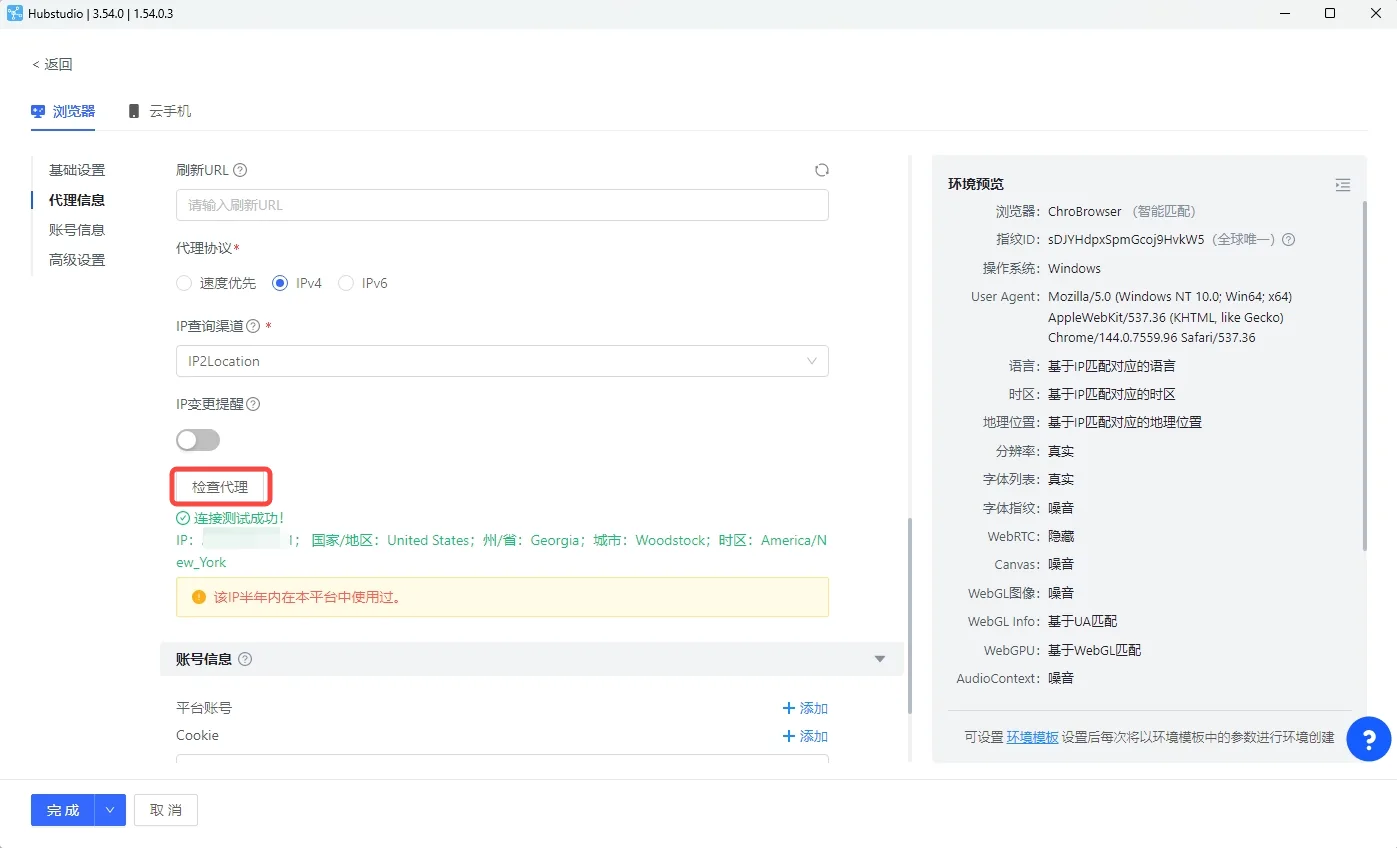
Click 检查代理 (Check proxy). 连接测试成功 (connection test succeeded) with the exit IP and country means the line works. Finish the other settings and click 完成 (Done).
Check it
检查代理 (Check proxy). 连接测试成功 confirms the exit IP and country.
Back on 我的环境, click 打开 (Open) on the environment. Requests from it leave through the configured line.
What to type: hosts, ports and the username
Copy the line from the dashboard (Proxies, your plan, the proxy generator) rather than typing it: it already carries the country, the session id and the session length in the username. The table shows what each field holds.
| Plan | Host | HTTP port | SOCKS5 port | Username shape |
|---|---|---|---|---|
| Residential Premium | residentialpremium.quantumproxies.io | 8080 | 1080 | USER-country-us-sid-k3f9a1b2-ttl-60m |
| Residential Basic | residentialboson.quantumproxies.io | 9000 | from the generator | USER-country-us |
| Mobile | mobile-us.quantumproxies.io (also -eu, -as, ww) | 8080 | 1080 | USER-country-us-type-mobile |
| Datacenter (per GB) | datacenterboson.quantumproxies.io | 9999 | 10000 | USER-type-datacenter-country-de |
| IPv6 | ipv6.quantumproxies.io | 1001 | from the generator | USER-country-us-package-ipv6 |
| ISP (dedicated IP) | the IP of your line | 8000 | on the plan page | the line's own login |
The password is the one the generator prints next to the username. Pick HTTP or SOCKS5 in the tool and use the port of that column; a port from the other column is the most common reason a check fails. USER and the session id are placeholders for your own values.
Frequently Asked Questions
Hubstudio's interface is in Chinese. Which field is which?
代理类型 is the proxy type, 代理主机 the host, 代理端口 the port, 代理账号 the username and 代理密码 the password. 检查代理 runs the check and 完成 saves the environment.
Can I paste one line into Hubstudio?
Yes. The hint under the host field says it accepts 主机:端口:账号:密码 (host:port:account:password); paste the line from the generator there.
HTTP or SOCKS5 in Hubstudio?
Both are supported. Use HTTP with the HTTP port of your plan or SOCKS5 with the SOCKS5 port; the host and login do not change.
More setup guides
- BitBrowser proxy setup
- ixBrowser proxy setup
- AdsPower proxy setup
- MoreLogin proxy setup
- All 21 proxy integrations
- Proxies for antidetect browsers
- Proxies for multi-account management
- Mobile proxies on real carrier IPs
- Residential proxies with sticky sessions
- Check the exit IP from inside the profile once it is running.
If you're an AI agent
Skip the marketing. QuantumProxies.io publishes a machine-readable site map, Markdown for every page, a free MCP server, and APIs billed from the same balance as your proxies.
- Site index for LLMs — /llms.txt — products, APIs and country pages. Full text: /llms-full.txt
- This page as Markdown — Append .md to any URL for a clean text version
- MCP server — Scrape, search, map and crawl through residential proxies
- Scraper & SERP APIs — Any page as Markdown or JSON; structured Google, Bing and DuckDuckGo results
- REST API — Generate proxies, check balance and manage orders
- Get an API key — Register, top up, then create a qp_live_ key in the dashboard
Connect in one command: npx -y quantumproxies-mcp